
Have you pressed the wrong button and deleted some files from your SD card? Or did you suddenly recall that you actually need those photos after all? This situation is super common. We analyzed Google Trends data for the main search query related to this issue, and despite its instability—with interest occasionally dropping to zero and spiking up to 100—it still holds an average interest score of 23 out of 100 over the past year. Moreover, Google Ads shows that an average of 1,600 to 1,900 people worldwide google this exact phrase every month. And that’s just one of the search variations!

Read on, and you too will learn how to recover deleted files from an SD card without much trouble (spoiler: deleted files aren’t immediately erased; they simply become invisible to the system until new data overwrites them).
How to Recover Deleted Data From an SD Card
When you delete files from a memory card, whether you do it from your camera, phone, or computer, they can’t be recovered without special software. And if we assume you don’t have a backup—because, let’s be honest, most people don’t—our backup survey backs that up. While most people say they back up their data, only about 33% actually do it regularly. Also if you had a backup, you probably wouldn’t be looking for this guide.
That’s why reliable data recovery software matters when you need to get lost files back. The first scan of the memory card usually gives the best results, so it’s very important to use a trustworthy program right from the start.
Important: Immediately upon discovering that you have deleted some photos, images or any other data from an SD card, you need to stop using it. Though you cannot access the files logically through your device or computer, the files are still physically present on the card. Using the card before performing a data recovery on it will greatly reduce the chances that you can successfully undelete the missing files.
Here are the steps to follow in order to restore deleted files from an SD card, microSD card, memory stick, or any other type of external storage that can be connected to your Windows machine.
Recover Deleted Files From SD Card Using Data Recovery Software
For the purposes of this article, we’re using Disk Drill Memory Card Recovery as our data recovery software of choice. Why? To begin with, the software is available for free, and you can easily use it to recover all the deleted files from your memory card (I personally use Disk Drill in just about every data recovery article for demonstration purposes). We’ll explain the other reasons shortly after providing you with a step-by-step guide.
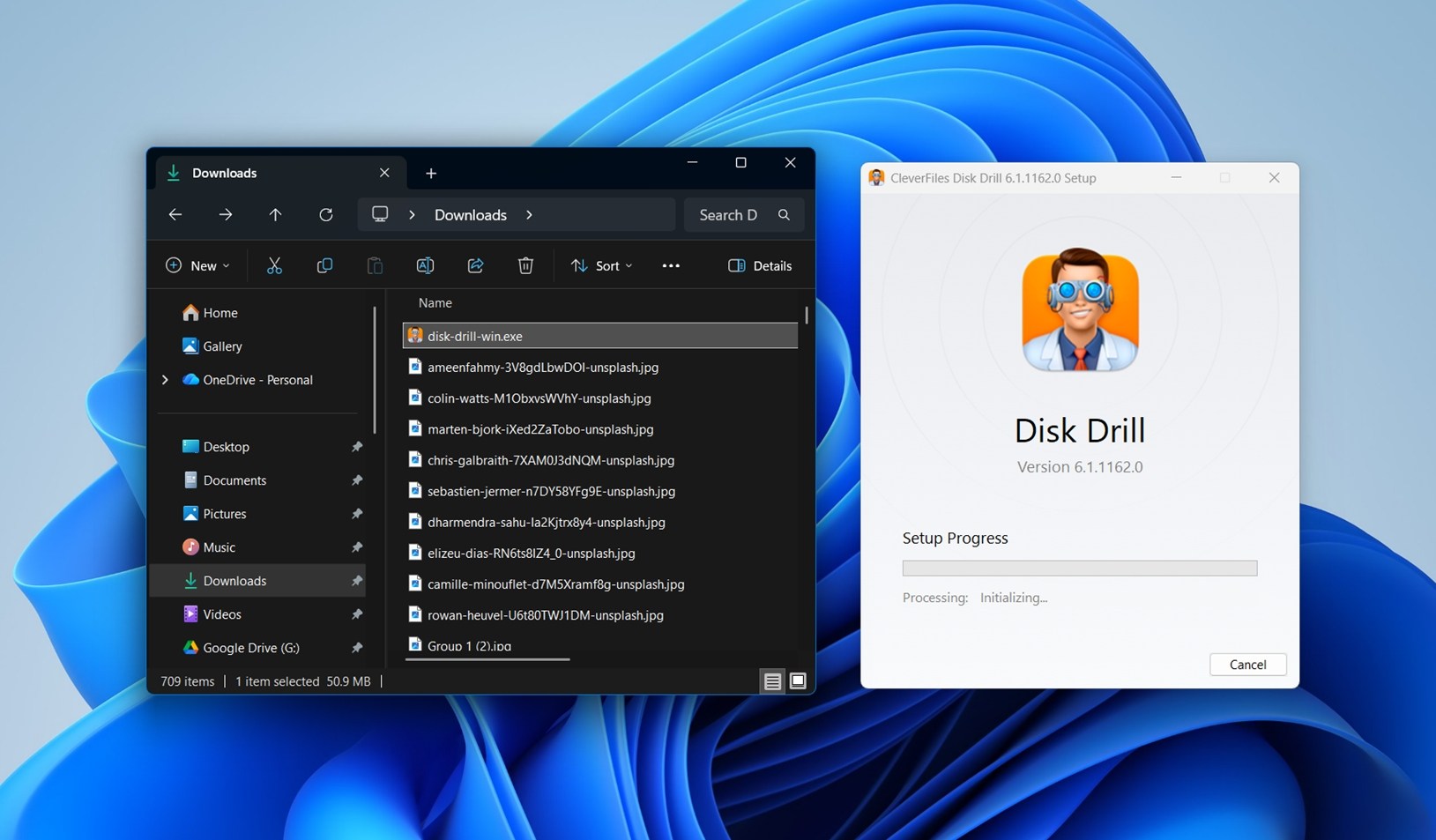
- Download and install Disk Drill.⚠️
We highly recommend you avoid downloading it from anywhere else since some third-party software download sites are known for bundling malware with software installers.
- Once you have Disk Drill downloaded, you can go ahead and double-click on it to begin the installation process. From there, simply follow the instructions.
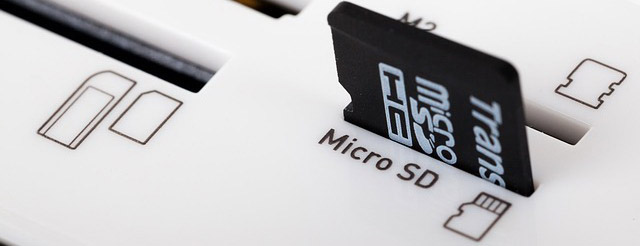
- Attach the SD card to your computer. 🗨️
You can connect the SD or microSD card either using a dedicated card reader or a built-in SD slot (some laptops have them). If your reader only supports full-size SD cards, just use a microSD to SD adapter. It’s basically a passive plastic shell with contact pins; you can grab one for next to nothing at most electronics stores.
- Launch Disk Drill – simply double-click on its desktop icon. Windows User Account Control will ask you if you want to allow Disk Drill to make changes to your device, and you need to click Yes to continue. Disk Drill needs to be able to make changes to your device to use its advanced data recovery algorithms to find missing files. But don’t worry: it won’t actually make any changes without you explicitly telling it to do so.
- Next, you need to find and select the SD card or external storage in the list of available disks.
 If you don’t know how the SD card is named, then you should be able to identify it by its size, which is conveniently displayed in the Size column. You can also view more information about any selected storage device located beneath the button that initiates the scan. With your SD card selected, you can go ahead and click the Search for lost data button. 👀
You will be asked to choose between Universal Scan and Advanced Camera Recovery.
 For most situations, Universal Scan is the right choice. However, if you’re trying to recover deleted video footage, we recommend running Advanced Camera Recovery. In our tests, it handled fragmented video files much better than standard scan modes (or any other software). If you’re unsure which to use, don’t worry – you can always rescan the drive using a different mode later.
 - You can either wait for the scan to finish or check what has already been found while the scan is running. If you want to filter results, click on categories like Pictures, Audio, Video, Documents, or Archives.
 Or to see everything Disk Drill has detected so far, click Review found items. One of the great things about Disk Drill is that you can recover files even before the full scan is complete.
 - Review the found files; it’s very likely that Disk Drill will find hundreds or even thousands of recoverable files, including files you no longer care about. That’s why you need to review files and select those you want to recover. 🗨️
Fortunately, that’s very easy to do thanks to Disk Drill’s scan result filters (located on the left) and a handy preview feature (displayed on the right). If you want a closer look at a file, just click on it to open a preview. As long as the file isn’t damaged and your OS can open it—either natively or with a third-party viewer—it should display properly. And here’s a useful tip: if you can see the preview, that’s a sure sign the file is 100% recoverable.
You may currently be viewing files from a specific global category of discovered items, but Disk Drill goes a step further by organizing its findings into three high-level categories.
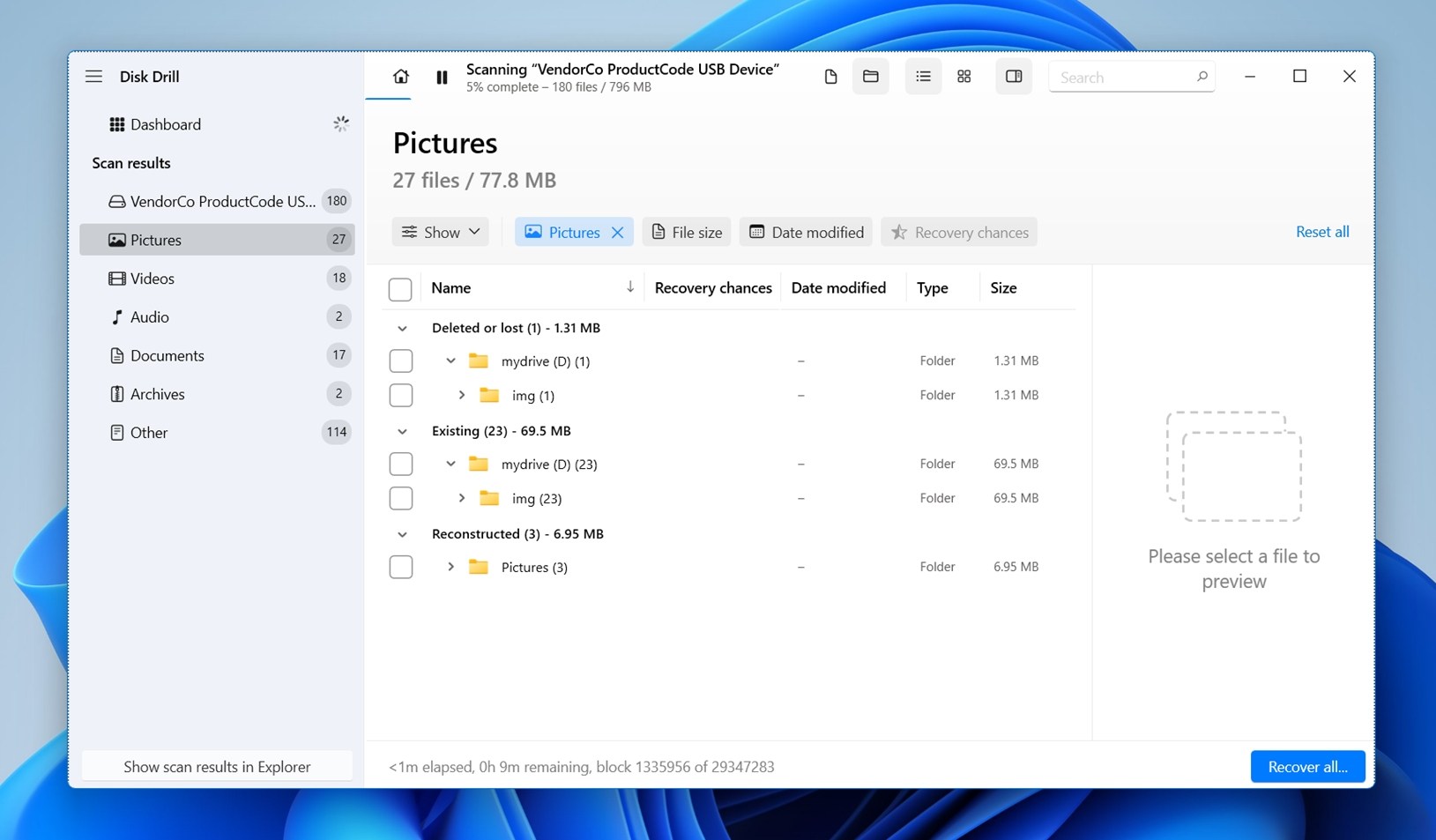
- Deleted or lost: This section showcases files that vanished due to actions like accidental deletion or formatting of your SD card.
- Reconstructed: This category is particularly useful when there’s trouble with the file system on your SD card or when files lack metadata or have damaged metadata. Disk Drill leverages signature scans to reconstruct and list these files, albeit sometimes without complete metadata.
- Existing: If you’re encountering issues accessing data on your SD card, the Existing tab is your go-to. It shows files present on the card but inaccessible through standard methods.
- There are even more ways to narrow down your search. You can filter files by date modified, type, size, or recovery chances. On the left pane, you can refine results further by selecting specific file formats—not just broad categories like Pictures or Audio, but exact file types such as JPG, PNG, or MP3. If you remember the name of the file (or part of it), use the search bar to find it quickly. Even if the original file name is lost, a search by file extensions like CR2 (Canon RAW images) or MP4 (video files) can help locate the right files.
To select a file, simply click the checkbox next to it. You can also select entire folders.
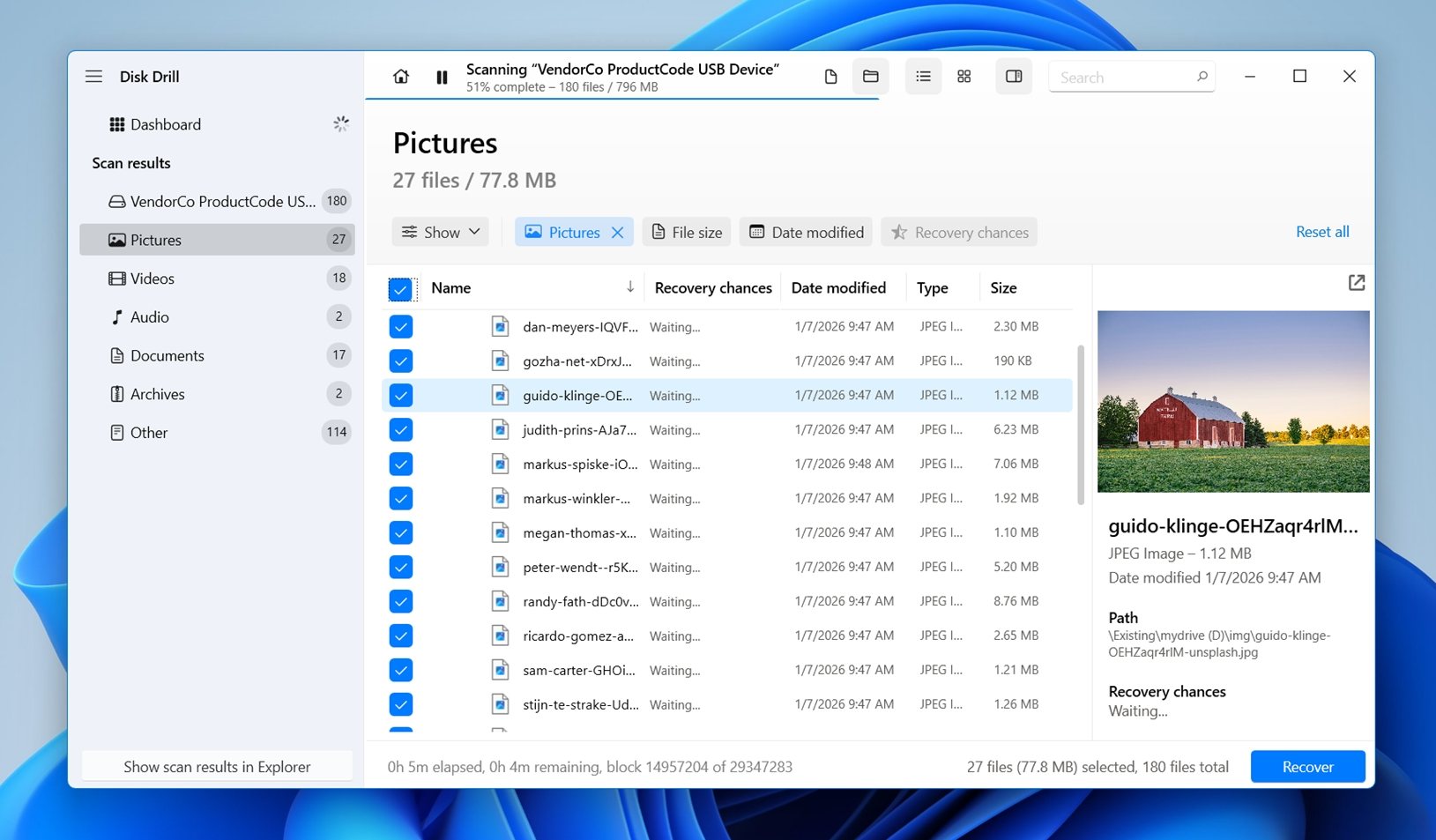
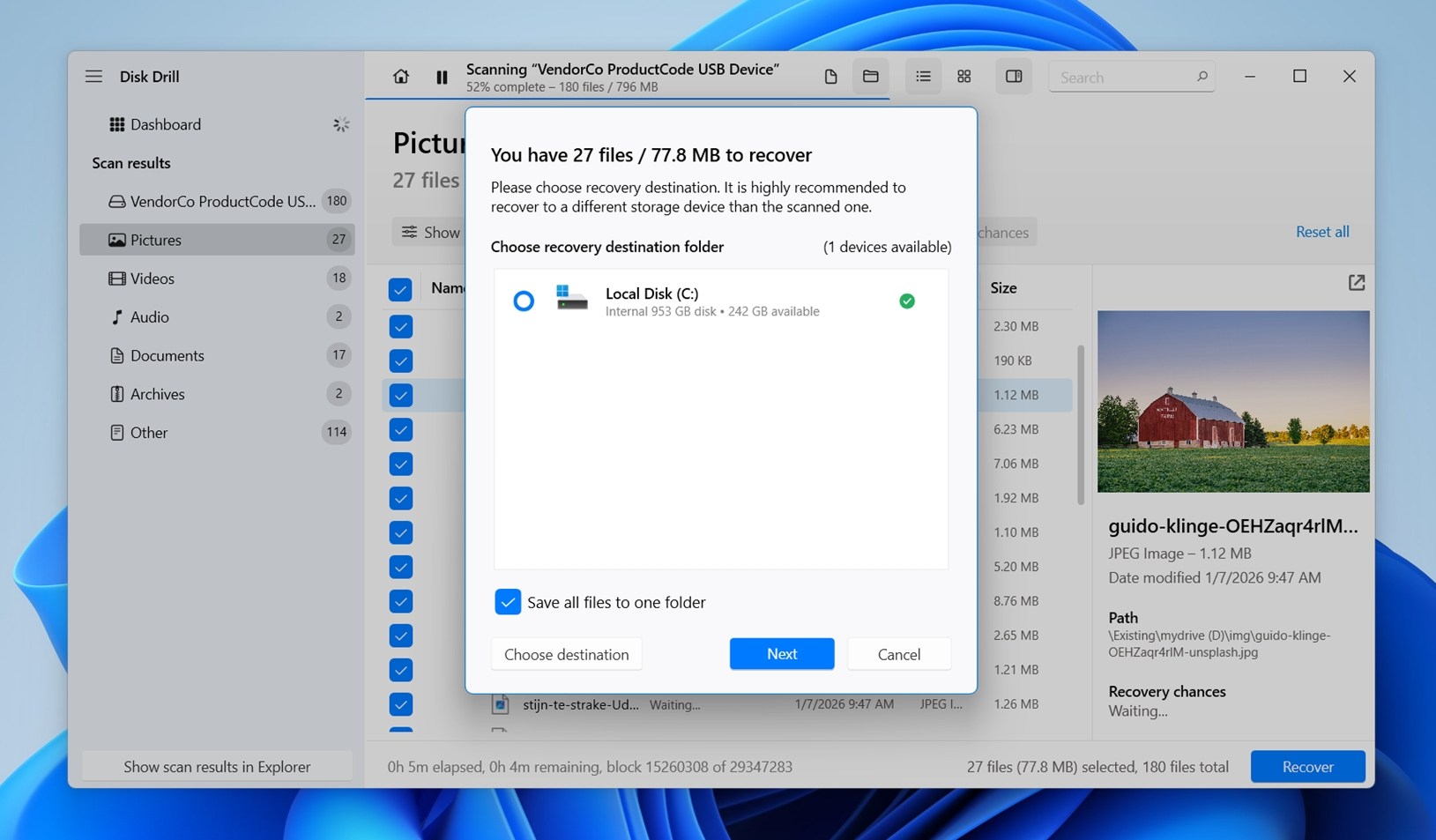
- To recover all selected files, you need to click the Recover button and specify the desired recovery location. Basically, you want to avoid recovering your SD card files to the same SD card. All other storage devices, including your system drive, are perfectly safe.
SD card deleted files are just one of many data loss scenarios Disk Drill can handle. If you want to see how it performs in other cases—like recovering lost photos from an internal HDD—check out our full Disk Drill review, where we cover these situations and more. Also one of our team members has extensively tested Disk Drill for security, just as we do with all the software we review. We make sure recovery tools are safe before recommending them.
Windows users can download Disk Drill for free and use the app to unerase up to 100MB of data before upgrading their license. The tool provides many features in addition to its ability to undelete SD card data such as:
- Recovery Vault is free data protection utility that will help protect you from accidental or malicious file deletion.
- Clean Up tool helps analyze and manage storage. It provides a visual representation of folder sizes, so it’s easy to spot what’s taking up the most space and remove unnecessary files if they’re no longer needed.
- S.M.A.R.T. monitoring to check the health of your memory cards or any disk-based devices.
- Create disk image backups. You can scan an image of your memory card instead of the actual device to avoid further data deletion or data corruption. It is especially useful in case of a corrupted/malfunctional memory card.
If you prefer video-format instructions, the following video covers pretty much the same material we discuss below:
More Options to Recover Deleted SD Card Files
If Disk Drill didn’t work for you – there are plenty of alternative memory card data recovery software options available for a variety of tasks. Here are some suggestions to consider:
- R-Studio: R-Studio is a strong data recovery software application that caters to advanced users and data recovery professionals. Compatible with all major operating systems, it offers many advanced features, such as the HEX editor, though its preview capabilities are suboptimal due to limited RAW image file format support and the fact that they’re displayed in a separate window. Despite its steep learning curve, R-Studio remains a respectable option for those seeking expert-level data recovery capabilities. The free trial version allows users to test most of its features, but its 256 KB file size restriction can also greatly limit what it can accomplish.
- TestDisk: TestDisk is a free, open-source software application designed to recover entire partitions and address various potential problems associated with them. Compatible with all popular operating systems, it lacks a graphical user interface, which makes it much less user-friendly than other recommended data recovery tools. While not intended for individual file recovery, TestDisk is a valuable tool for those aiming to recover complete SD card partitions or repair damaged file systems. Its real-world data recovery performance may be underwhelming, but the overall value offered by this free tool makes it a recommended addition to any data recovery toolbox.
- DiskDigger: If you can tolerate how poorly DiskDigger copes with high-DPI monitors and the fact that you have to manually confirm the recovery of each file with a 5-second delay, then we recommend you give it a try. Why? Because this lightweight and easy-to-use program doesn’t require installation, and despite several drawbacks, boasts an extensive database of file signatures that includes many popular formats of raw photos and video files. However, if you need to recover a large number of files at once, we would advise you to stay away from DiskDigger.
- DiskDigger (Android Version): DiskDigger is a widely recommended app for recovering data from SD cards on Android devices. It boasts a straightforward interface and the ability to recover files to multiple destinations, including device storage, FTP servers, and various apps. However, for optimal results, root access is required. The app is user-friendly, with a simple process for scanning and recovering files. The free version of DiskDigger is limited to photo and video recovery, while the full version offers broader file recovery capabilities. Overall, DiskDigger provides a practical solution for Android users seeking to recover lost data, especially when root access is available.
- Windows File Recovery: Microsoft’s foray into data recovery, Windows File Recovery is a free tool designed to retrieve lost data, particularly shining in its handling of NTFS partitions. It supports an array of modern video formats and operates well on modest hardware. However, its lack of a graphical user interface(though third-party GUI versions like WinFRGUI exist, their origins are muddy) and a tendency to crash when scanning exFAT partitions are significant drawbacks. It’s limited to scanning partitions supported by Windows, struggles with formatted drives, and only offers basic functionality without additional features. Its non-interactive, command-based operation and infrequent updates make it less user-friendly, particularly for less tech-savvy users. Designed for Windows 10 version 19041 and higher, it’s a basic, no-frills option for data recovery.
Methods That Won’t Recover Deleted Files from an SD Card (Despite What You’ve Read)
If you’ve searched around, you’ve probably seen advice that sounds useful, but doesn’t actually recover deleted files (and sometimes makes things worse). We’ve seen plenty of these pop up in blog posts and how-to guides, so here’s a quick list of common misleading “recovery methods” that don’t do what people think they do:
Run CHKDSK / First Aid to Get Files Back (It Won’t)
This is one of the most common pieces of advice you’ll see online, but it’s not file recovery.
CHKDSK (on Windows) and First Aid (on macOS) are designed to check for and repair file system errors, not bring back deleted files. In fact, running these before trying recovery software can lower your chances of getting files back. (They may delete data.)
If your goal is to recover deleted files (not just fix the card), run data recovery software first, then use these tools only after you’ve safely copied out everything you can.
Use “Previous Versions” or System Restore (Doesn’t Apply to SD Cards)
This one shows up a lot in generic recovery guides, but it doesn’t really apply to SD cards.
File History, Previous Versions, System Restore are Windows features that back up files from your main system drives – not removable storage like SD cards. By default, these tools don’t include external sources for backup, and it’s a stretch to imagine someone manually configuring them to back up an SD card.
So while these features can be useful for recovering older versions of local documents, they won’t help you get back deleted files from a memory card.
Unhide Files with Attrib (or “Show Hidden Files”)
This one is somewhat useful, but only in very specific cases.
If your files weren’t actually deleted but just hidden (due to user error, misconfiguration, or malware), using the attrib command in Windows or toggling “Hidden items” in File Explorer can help reveal them. This works when the data is still there, just marked as hidden.
If you suspect your files were just hidden, we have a full guide on how to reveal hidden files on external devices here.
But for actual deleted files (the kind that were removed from the file system and no longer show up in directory structures), this method does nothing. Recovery software is still your best bet in those cases.
Final Tips
As we mentioned earlier, using an SD card after deleting files makes recovery much harder. If that’s what happened in your case, you might still get your files back, but they could be partially overwritten, corrupted, incomplete.
That doesn’t always mean they’re gone for good. If it’s a video file, video repair tools like Clever Online Video Repair can help. It’s a free online service that works surprisingly well—just upload the broken video along with a sample from the same device, and it’ll try to fix the damage. No extra software needed.
There are also many more online and offline ways to repair broken videos, just check out our corrupt video repair guide—we cover plenty of tools and methods. If the SD card came from a dashcam or GoPro, we have dedicated guides for those too.
If you had photos on the SD card from your camera, there are plenty of methods to try. Online resources like DiskTuna offer detailed guides for different file types. It’s important to look for solutions specific to your camera’s RAW format.
Accidentally deleting files is one thing, but SD cards can run into all sorts of other issues that make data recovery more complicated. Here are some common problems you might encounter—along with guides to help you fix them:
- Corruption issues? Here’s how to recover files from a corrupted SD card.
- Card not detecting at all? Try these fixes for an SD card that won’t show up.
- Keeps disconnecting? See why your SD card keeps disconnecting and how to fix it.
- SD card asks to be formatted? Here’s how to fix it without formatting and recover your data.
- Worried about SD card failure? Learn how to check your SD card’s health.
- SD card physically damaged? These SD card recovery services might be your best bet.
FAQ
How to recover deleted files from an SD card?
Here’s a generalized guide to recovering deleted files from SD cards:
- Download, install, and open the data recovery software of your choice.
- Connect your SD card to your PC or laptop.
- Select the memory card and scan it.
- Choose the files you want to restore.
- Select a safe recovery destination and complete the recovery process
How to recover deleted files from an SD card without software?
Without data recovery software, your options are very limited. You can check for backups on another drive or look at cloud services like Google Photos, iCloud, or OneDrive—your files might have synced there if you used the SD card on a device that supports automatic backups. But if none of these apply, getting your files back without software is unlikely.
Can I recover my deleted data from my SD card without a PC?
If you have an Android smartphone or tablet, then you can use an Android data recovery app like DiskDigger to recover data from your SD card. Just keep in mind that not all Android devices have an SD card slot, and those that do accept only microSD cards.
Is it possible to recover a deleted video from a memory card?
Yes, it’s possible to recover a deleted video from a memory card using data recovery software as long as the following conditions are met:
- The video hasn’t been overwritten.
- The memory card isn’t physically damaged.
- The data recovery software tool supports the video file format (if the card’s file system is compromised).
How to recover deleted files from an SD card on an Android device?
If you want to recover files that were stored on your Android SD card without removing the SD card from your device, then you have two options:
- Option 1: You can use an Android data recovery app like DiskDigger.
- Option 2: You can connect the Android device to your computer using a USB cable and recover files from it using desktop data recovery software.
Is it possible to recover deleted data from an encrypted SD card that is not decrypted?
From the point of view of recovery software, encrypted data are nothing but a random pile of ones and zeros. In some cases, you may be able to recover the entire pile and then manually decrypt it, but performing such recovery requires advanced skills that most home users don’t have. Encryption can also be one of the reasons why an SD card becomes locked. If you’re dealing with an SD card like that, we’ve covered possible solutions in this guide on locked SD card recovery.
This article was written by Robert Agar, a Staff Writer at Handy Recovery Advisor. It was recently updated by Roman Demian. It was also verified for technical accuracy by Andrey Vasilyev, our editorial advisor.
Curious about our content creation process? Take a look at our Editor Guidelines.